Why Your Shopify Store Is Slow (and How to Fix It)
A slow store costs you twice: shoppers leave before the page finishes loading, and Google uses page experience as a ranking signal. The good news is that Shopify’s servers are rarely the problem. Almost every slow Shopify store we work on is slow because of what’s been added on top of it.
Here are the most common causes, how to spot each one, and how to fix it.
First, measure properly
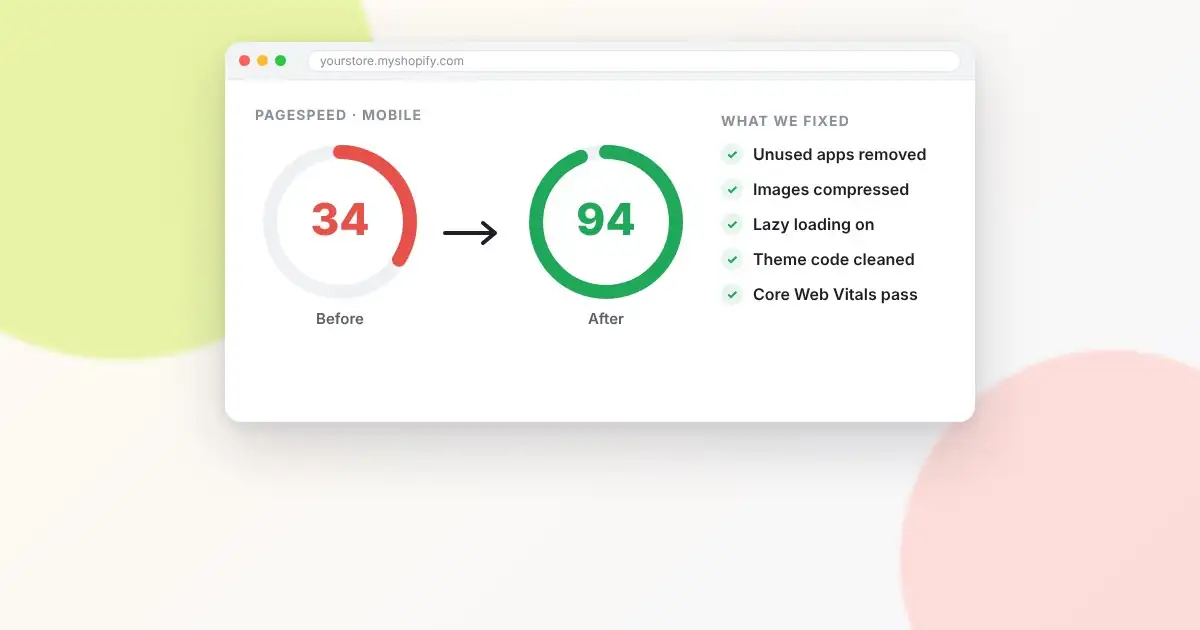
Before changing anything, get a baseline. Run three page types through Google PageSpeed Insights: your homepage, a busy collection page and your best-selling product page. Look at the mobile results, since that’s where most of your traffic is and where problems show up first.
Focus on the three Core Web Vitals:
- Largest Contentful Paint (LCP): how long until the main content appears. Aim for under 2.5 seconds.
- Interaction to Next Paint (INP): how quickly the page responds when someone taps or clicks. Aim for under 200 milliseconds.
- Cumulative Layout Shift (CLS): how much the page jumps around while loading. Aim for under 0.1.
If your store has enough traffic, the “field data” at the top of the report reflects real visitors. That matters more than the lab score below it.
Cause 1: Too many apps
This is the number one cause. Many apps inject JavaScript and CSS into every page, whether that page uses the feature or not. A review widget, a currency converter, a popup, a chat bubble, an upsell tool and a loyalty badge can each add a few hundred milliseconds.
How to fix it:
- List every installed app and ask: does this earn its keep? Remove any you can’t justify.
- After uninstalling, check your theme files for leftover code. Many apps don’t clean up after themselves.
- Where possible, replace several single-purpose apps with one that covers multiple needs, or with a small amount of custom theme code.
Cause 2: Oversized images
Uploading a 5,000-pixel, 4 MB photo for a banner that displays at 1,400 pixels wide forces every visitor to download far more than they need.
How to fix it:
- Resize images before upload. Around 2,000–2,500 pixels wide is plenty for full-width banners.
- Make sure your theme uses Shopify’s
image_urlfilter with responsivesrcsetsizes, so phones get smaller files. - Lazy-load images below the fold, but don’t lazy-load your hero image. That delays your LCP.
Cause 3: A heavy or outdated theme
Older themes, and some feature-packed premium themes, load large JavaScript libraries, multiple font families and sliders on every page. If your theme predates Shopify’s Online Store 2.0, it’s likely carrying a lot of unnecessary weight.
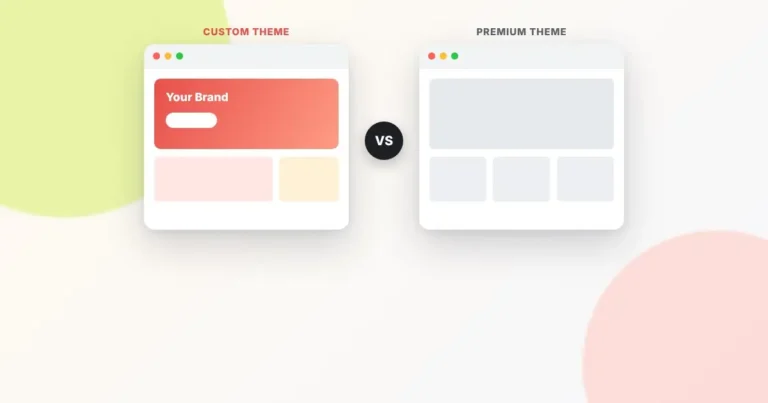
How to fix it: Test a free modern theme such as Dawn on a duplicate of your store and compare PageSpeed scores. If the difference is dramatic, it may be time for a theme upgrade or a custom build focused on performance.
Cause 4: Sliders and autoplay video
Homepage carousels look impressive in a design review, but they load several large images at once and rarely improve conversions. Few visitors wait for slide three. Autoplaying background video is even heavier.
How to fix it: Replace the slider with a single strong hero image and a clear call to action. If you need video, show a poster image and load the video only when the visitor presses play.
Cause 5: Too many fonts and third-party scripts
Each custom font weight is a separate file. Tracking pixels, heatmap tools, A/B testing scripts and social embeds all add up too.
How to fix it:
- Limit yourself to two font families and only the weights you actually use.
- Consider system fonts for body text. They load instantly.
- Audit your tracking scripts. Remove tools you no longer check, and load the rest through Shopify’s Customer Events where possible.
Cause 6: Layout shifts from late-loading elements
If your page jumps when an announcement bar, review stars or an app banner appears, that’s a CLS problem. It’s frustrating for shoppers, who may tap the wrong thing.
How to fix it: Reserve space for these elements in your theme’s CSS, and set width and height attributes on all images.
A realistic speed-up plan
- Week 1: Remove unused apps and leftover code. Compress and resize your largest images.
- Week 2: Replace sliders and autoplay video, trim fonts and audit tracking scripts.
- Week 3: Re-measure. If scores are still poor, evaluate a theme upgrade or a custom performance-focused build.
Speed work is one of the highest-return improvements you can make, because it lifts both SEO and conversion rate at the same time. If you’d like help, AlhudaSols builds and optimizes Shopify stores with performance as a priority from day one.
Frequently asked questions
What is a good PageSpeed score for Shopify?
Don’t chase 100. A mobile score in the 60s or 70s with passing Core Web Vitals is a strong result for a real store with apps, reviews and tracking. The Core Web Vitals matter more than the headline number.
Does Shopify’s speed score in the admin matter?
Shopify’s older speed score has been replaced by Web Performance reports based on real Core Web Vitals data. Those are worth watching, since they reflect what your actual visitors experience.
Will removing apps break my store?
It can if a feature depends on that app. Always duplicate your theme before making changes, remove one app at a time and test key pages after each removal.